Apple MacBook Air M5 Review: Worth It? (October 2026)
The 13-inch MacBook Air M5 is the best fit here for students and everyday Mac users who carry a laptop often. Choose the 15-inch Air for more screen space, or the HP OmniBook 3 if your required apps need Windows.
On this page (11 sections)
- Who should buy the MacBook Air M5?
- What should you check before switching to macOS?
- Should you choose the 13-inch or 15-inch Air?
- How much memory and storage do you need?
- How should you plan ports and external displays?
- What should you expect from battery life and video calls?
- Does M5 make this the right laptop for creative or AI work?
- When is the HP OmniBook 3 the better choice?
- How should you set up and care for your new laptop?
- Which buying mistakes should you avoid?
- Which MacBook Air M5 should you choose?
The 13-inch MacBook Air M5 is the best fit here for people who want a Mac for everyday work and carry it often. Choose the larger Air if you work mainly on the laptop screen, and choose Windows if your required software calls for it.
The useful question is how each computer fits your day: carrying it, reading documents, joining calls and connecting desk gear. Start with those needs before deciding how much weight to give AI features.
Who should buy the MacBook Air M5?
Buy the smaller Air for portable school, home and office work when your apps support macOS. Writing papers, managing email, preparing slides and joining meetings are clear reasons to consider it.
MacBook Air 13-inch M5 (16GB, 512GB)

- 13.6-inch Liquid Retina display
- 16GB unified memory
- 512GB SSD
- Two Thunderbolt 4 ports
Choose this compact Air for writing, classes and everyday work when you carry your computer often. Check course or work software for macOS support before switching.
Pros
- 2.71 lb weight for frequent carrying
- 16GB unified memory
- 12MP Center Stage camera with Desk View
- Supports up to two external displays
Cons
- Less room for side-by-side windows than the larger Air
- Wired accessories may require a hub
This configuration pairs an M5 chip with 16GB unified memory and a 512GB SSD. Its 13.6-inch Liquid Retina display supports 1 billion colors, while its 2.71 lb weight makes it the lighter Air in this comparison.
Who should choose the 13-inch MacBook Air M5?
Choose it if your day involves moving between classrooms, offices or shared workspaces. It also makes sense if a larger monitor handles your desk work and the laptop screen is mainly for travel.
Skip it if you need several documents visible at once and won't use a separate monitor. A compact computer loses some of its appeal if you spend every session switching windows to see your work.
For college, confirm software requirements with your department before choosing an operating system. Our guide to the best laptops for college students helps connect that decision to course needs.
What should you check before switching to macOS?
Check your required apps and accessories first, especially if you're leaving a Windows computer. A familiar app name doesn't guarantee that every feature, add-on or device connection works the same way on both systems.
Make a short list of your essential software, including exam tools, accounting programs, specialist course apps and work VPN software. Confirm macOS support with the software provider or your school or employer.
Browser-based work can make a switch simpler, but check file exchange too. Open a representative document with its fonts, formulas or macros before relying on a new workflow.
Apple also offers Mac and iPhone features for moving tasks between devices, including starting an email on one and finishing on the other. These are useful extras if you use both devices, but required software should decide the purchase first.
Should you choose the 13-inch or 15-inch Air?
Choose the 15-inch Air for more built-in workspace if you often work without an external monitor. Choose the smaller model if carrying comfort and fitting into tight spaces matter more.
MacBook Air 15-inch M5 (16GB, 512GB)
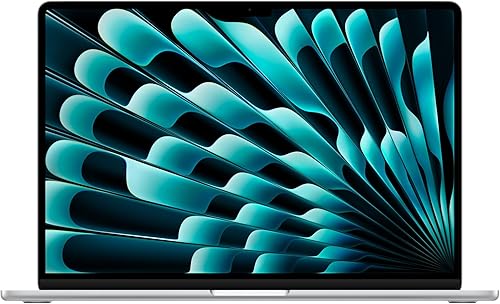
- 15.3-inch Liquid Retina display
- 16GB unified memory
- 512GB SSD
- Six-speaker sound system
The larger Air suits people who keep notes beside a document or work without a separate monitor. Its extra screen space comes with a larger frame and more weight.
Pros
- More screen space for documents and split windows
- Same memory and storage as the smaller Air
- Six-speaker sound system
- Supports up to two external displays
Cons
- Larger and heavier than the smaller Air
- No extra built-in ports over the smaller model
The larger Air has a 15.3-inch Liquid Retina display and weighs 3.32 lb. It has the same memory and storage capacity as the smaller configuration, so the main reason to choose it is the screen.
Extra space helps when you keep a source document beside a draft, compare spreadsheets or follow a lesson while taking notes. It can also leave more of a page visible when you increase text size.
The larger Air has six speakers, compared with four in the smaller model; both support Spatial Audio and Dolby Atmos. That difference may matter for watching films without headphones, but screen fit is the stronger buying reason.
Skip the larger Air if you usually plug into a monitor or need a compact travel computer. Match the choice to your normal routine with our laptops by use guide.
How much memory and storage do you need?
These Air configurations suit buyers whose work fits 16GB of unified memory and a 512GB SSD. Check your current workload and used storage before deciding that either capacity is enough.
Memory holds the work your apps are actively using; storage holds your files and installed software. An external drive can hold extra files, but it doesn't add working memory.
Documents and spreadsheets take far less room than video libraries, large photo collections or local project archives. Count the files you need available away from an internet connection, rather than assuming cloud storage will cover every situation.
Leave room for new apps, downloads and ongoing work. If your current computer is already nearly full, plan an archive or external storage arrangement before moving everything.
For memory, read the recommended requirements for your most demanding app. Our laptop buying and specs guide explains the terms, while how to choose a laptop for home use connects them to everyday tasks.
How should you plan ports and external displays?
Count simultaneous connections, including monitors, storage and wired accessories. Both Air models have two Thunderbolt 4 ports, MagSafe charging and a headphone jack.
Using MagSafe for power leaves the Thunderbolt connections available for other gear. If you need USB-A devices, a memory card connection or wired networking, include a suitable adapter or hub in your plan.
Both models support up to two external displays. Check the exact monitor resolutions, refresh rates and dock compatibility before ordering cables.
A common mistake is choosing a dock by its socket count alone. Confirm that its display arrangement works with your Mac and monitors, and check its power requirements if it will charge the laptop.
The Air models also have Wi-Fi 7 and Bluetooth 6 through Apple's N1 wireless chip. You don't need to replace a working home network simply to match the newest wireless label.
What should you expect from battery life and video calls?
Plan charging around your workload, using Apple's up-to-18-hour battery figure as a comparison point. Screen brightness, long calls and demanding apps can change how long a charge lasts.
Don't build a full day of meetings around the maximum claim. Keep charging access in mind for travel days, and reduce unnecessary background activity when you need the battery to stretch further.
Both Air models have a 12MP Center Stage camera that keeps you in frame, plus Desk View for sharing a top-down view of your workspace. A three-mic array supports calls without a separate microphone.
For clearer calls, face a light source instead of sitting with a bright window behind you. Raise the screen toward eye level and use headphones when room sound feeds back into your microphone.
Does M5 make this the right laptop for creative or AI work?
Choose around your actual creative apps, rather than the AI label. Apple describes the M5's Neural Engine and GPU with Neural Accelerators as hardware for AI work, and Apple Intelligence includes writing and everyday task tools.
Those features matter when they support something you plan to do. Check feature availability and app requirements before treating an AI tool as a reason to replace a working laptop.
Photo organization, presentation design and occasional media projects are different demands from large professional projects. For sustained production, look for app-specific performance evidence and check the memory and storage your projects require.
Don't assume a larger screen means a faster configuration. The larger Air here gives you more room to arrange your work, but that alone doesn't establish shorter export times.
When is the HP OmniBook 3 the better choice?
Choose the HP OmniBook 3 for Windows software and a large home workspace. It's the relevant alternative here if macOS would disrupt your required apps.
HP OmniBook 3 17.3-inch Core Ultra 5 (8GB, 512GB)

- 17.3-inch FHD IPS display
- Intel Core Ultra 5 225U
- 8GB RAM
- 512GB SSD
Choose the HP for Windows software and a large built-in screen in a mostly stationary setup. Its memory capacity calls for more care if you keep many apps open.
Pros
- Large FHD IPS screen
- Windows 11 Home
- FHD camera with HDR auto-switch
- 65 W USB-C GaN power adapter included
Cons
- Less memory than either Air configuration
- Large screen needs more desk and bag space
The HP combines an Intel Core Ultra 5 225U processor, 8GB DDR5 RAM and a 512GB SSD. Its 17.3-inch FHD IPS screen has a 1920 x 1080 resolution and a 60 Hz refresh rate.
That large panel suits reading documents or keeping work visible at a desk, but screen size and detail aren't the same thing. Think about comfortable text size as well as how many windows you want to arrange.
Its lower memory capacity makes app requirements especially important. Skip this configuration if your essential software recommends more memory, and don't assume it can be upgraded without confirming that first.
The FHD camera includes HDR auto-switch, and HP's voice-focused noise reduction is designed to reduce surrounding sounds during calls. HP claims up to 16 hours and 15 minutes of battery life and includes a 65 W USB-C GaN adapter.
HP also claims charging from 0 to 50% in about 45 minutes. For other choices that fit the same operating system needs, see our Windows laptop guide.
How should you set up and care for your new laptop?
Set up security, backups and essential apps before moving every file. This gives you a chance to confirm that your daily work functions as expected.
Install available system and app updates, then set a strong login password. On either Air, configure Touch ID for convenient sign-in.
Choose a backup method and make sure it includes files stored only on the laptop. Syncing a folder helps you reach files across devices, but you should also have a way to recover deleted or changed work.
Install essential apps first and open a few real projects. Confirm printing, video calls and monitor connections before retiring your old computer.
Carry the laptop in a padded sleeve and keep loose objects away from the screen before closing it. Avoid packing a charger or other hard item where it can press against the lid.
For cleaning, shut down and unplug the computer, then use a soft, lint-free cloth. Follow the manufacturer's cleaning guidance, keep liquid away from openings and avoid spraying cleaner directly onto the screen.
Which buying mistakes should you avoid?
Avoid choosing by chip name, diagonal screen size or battery claim alone. Each can distract from a practical mismatch that affects daily use.
- Skipping software checks: confirm essential apps and work or school requirements before switching systems.
- Buying screen space you rarely use: a larger Air adds carrying weight even when a desk monitor does most of the work.
- Ignoring accessory needs: plan the hub, cables and adapters required by your existing equipment.
- Copying a nearly full drive: sort out archives and backups before moving your files.
- Choosing mainly for AI features: start with the tasks you'll perform regularly.
- Treating a large display as a performance upgrade: screen area doesn't tell you how quickly an app will finish a job.
If none of these options fits your software or workspace, widen the search. Our complete laptop guide compares choices across home, school and work.
Which MacBook Air M5 should you choose?
Choose the 13-inch MacBook Air M5 if you carry your computer often, especially when a monitor handles longer desk sessions. Choose the larger Air if the built-in display is your main workspace and side-by-side windows are part of your day.
Choose the HP if Windows compatibility comes first and its memory capacity meets your needs. Before ordering, settle 3 things: required apps, comfortable screen size and the connections your desk needs.
If you're also considering Apple's smaller alternative, read our MacBook Neo review. Then use MacBook Neo vs MacBook Air to decide which better matches your work.
Frequently asked questions
Is the 13-inch MacBook Air M5 good for college?
Yes, if your course software supports macOS and you carry your laptop between classes; before buying, check your department's requirements for specialist apps, exams and accessories. Choose the larger Air if you work mainly on its built-in screen and want more room for notes beside lectures.
How long does the MacBook Air M5 battery last?
Apple claims up to 18 hours for both Air models here; actual runtime depends on screen brightness, apps, video calls and connected devices, so plan charging around your busiest day. Carry a charger for long stretches away from home rather than assuming every workload will reach Apple's figure.
What is the difference between the 13-inch and 15-inch MacBook Air M5?
The main differences here are screen size, weight and speakers. The smaller Air has a 13.6-inch display, weighs 2.71 lb and has four speakers; the larger model has a 15.3-inch display, weighs 3.32 lb and has six speakers; their memory, storage and built-in port selections match.
Can the MacBook Air M5 connect to external displays?
Yes, both Air models here support up to two external displays; before buying cables or a dock, confirm support for your monitors' resolutions, refresh rates and connections. A hub with several video sockets does not by itself establish that it supports the exact Mac display setup you want.


