6 Best Chromebooks for Students (October 2026)
The best Chromebooks for students include the Lenovo Chromebook Plus 2-in-1 14-inch (8GB for reading between classes, the Acer Chromebook Plus 514 14-inch (8GB for desk-based study, and the Lenovo Chromebook m 14 (8GB for campus commuters.
On this page (9 sections)
- Which Chromebook is best for students?
- How these student Chromebooks were chosen
- Best Chromebooks for students by school need
- What should students check before buying a Chromebook?
- Which screen and design make schoolwork easier?
- How should you set up a Chromebook for school?
- How can students keep a Chromebook useful through the term?
- Which Chromebook buying mistakes should students avoid?
- Which student Chromebook should you choose?
The best Chromebook for students is the Lenovo Chromebook Plus 2-in-1 if you want one device for typing assignments and reading on a folded touchscreen. Choose the Acer Chromebook Plus 514 for a regular study station, or the Lenovo Chromebook m 14 for carrying between classes.
Start with your school's software requirements before choosing any model. Our Chromebook vs laptop guide explains the operating-system differences that matter when a course needs more than a web browser.
Our picks at a glance
-
1
 Best for reading between classes
Lenovo Chromebook Plus 2-in-1 14-inch (8GB, 256GB)
8.0/10 our score
See it on Amazon -
2
 Best for desk-based study
Acer Chromebook Plus 514 14-inch (8GB, 256GB)
7.9/10 our score
See it on Amazon -
3

- 4
 Check it
Lenovo Flagship Chromebook 14-inch (4GB, 64GB)
Best for light touchscreen schoolwork - 5
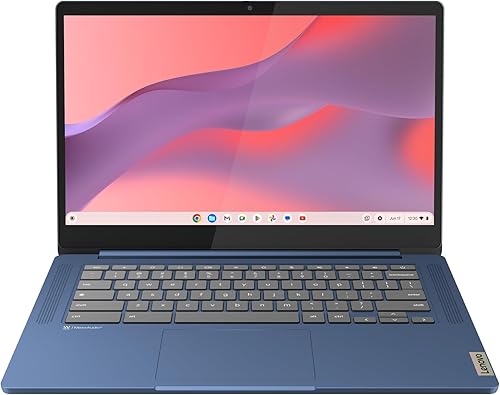 Check it
Lenovo IdeaPad Slim 3 Chromebook 14-inch (4GB, 64GB)
Best for focused homework sessions - 6
 Best for shared homework spacesCheck it
Which Chromebook is best for students?
The Lenovo Plus 2-in-1 is the most flexible choice here, while Acer suits a desk-based workflow and the Chromebook m 14 suits a lighter bag. The right choice depends on where you study and how much work you keep offline.
For a student who reads course PDFs between lessons, a screen that folds back can be useful every day. For someone who types at a desk with a monitor and mouse, connections and multitasking deserve more attention.
The three lower-ranked models fit narrower needs: light assignments, a small number of open tabs and modest downloads. Choose one because that matches the student's workload, rather than assuming every school task is equally simple.
Lenovo Chromebook Plus 2-in-1 14-inch (8GB, 256GB)
- Intel N355 processor
- 8GB memory
- 256GB UFS storage
- 14-inch WUXGA IPS touchscreen
- Fingerprint reader and webcam shutter
A convertible choice for students who alternate between typing assignments and reading on a folded screen. The fingerprint reader and physical camera shutter add useful everyday controls.
Pros
- Laptop, tent and tablet modes
- Room for downloaded course materials
- Fingerprint reader and webcam shutter
Cons
- Heavier than the Chromebook m 14
- Convertible design adds little for typing-only use
Acer Chromebook Plus 514 14-inch (8GB, 256GB)
- Intel Core i3-1315U
- 8GB LPDDR5 memory
- 256GB PCIe Gen4 SSD
- 14-inch WUXGA IPS matte touchscreen
- FHD camera with privacy shutter
A strong fit for students who work across documents, research tabs and an external display. Its matte touchscreen and broad port selection suit a regular study station.
Pros
- Core i3 processor and SSD
- Two USB-C ports, two USB-A ports and HDMI
- Protective sleeve included
Cons
- Does not offer the top pick's convertible modes
- Extra local storage adds little for a browser-only routine
Lenovo Chromebook m 14 (8GB, 64GB)
- MediaTek Kompanio 540
- 8GB memory
- 64GB UFS storage
- 14-inch WUXGA IPS display
- Under 3 lb
A lighter carry for students whose assignments live mainly online. It keeps the memory capacity of the two higher picks while reducing local storage.
Pros
- Under 3 lb
- 8GB memory for browser multitasking
- USB-C, USB-A and HDMI ports
Cons
- Limited room for large offline libraries
- No convertible tablet mode
Lenovo Flagship Chromebook 14-inch (4GB, 64GB)
- 14-inch FHD IPS touchscreen
- 4GB RAM
- 64GB eMMC storage
- MediaTek Kompanio 520
- 720p webcam with privacy shutter
A basic school Chromebook for students who value touch input and a Full HD screen. Keep the workload focused rather than leaving many apps and tabs open.
Pros
- Full HD touchscreen
- microSD reader and headphone/microphone jack
- Webcam privacy shutter
Cons
- Less memory for overlapping school tasks
- 720p camera has lower resolution than Acer's camera
Lenovo IdeaPad Slim 3 Chromebook 14-inch (4GB, 64GB)
- MediaTek Kompanio 520
- 4GB memory
- 64GB storage
- Camera privacy shutter and mute key
- 2.87 lb
A simple choice for a student who completes one browser-based assignment at a time. The camera shutter and mute key provide useful controls during remote lessons.
Pros
- Physical camera shutter and mute key
- USB-C supports charging, files and a monitor
- Light enough for regular carrying
Cons
- Limited headroom for busy multitasking
- Screen resolution needs confirmation before ordering
HP Chromebook 14 (4GB, 64GB)
- Intel Celeron N4120
- 4GB RAM
- 64GB eMMC storage
- 14-inch HD anti-glare display
- HP Fast Charge
A basic homework option for students moving between rooms at home. Its anti-glare screen helps manage reflections, while Fast Charge is useful between study sessions.
Pros
- Anti-glare screen
- Full-size keyboard
- Fast Charge support
Cons
- Lower screen resolution than the Full HD and WUXGA picks
- Limited memory for overlapping apps and calls
How these student Chromebooks were chosen
Schoolwork fit comes first: memory for overlapping tasks, storage for downloaded materials, readable screens and practical carrying weight. FondlyNoted compared those features alongside camera controls, ports and convertible designs.
The ranking favors devices that leave room for a student's workload to grow. A laptop that handles today's short assignments may face longer research projects, video calls and several school websites next term.
Screen and connection choices also affect daily use. A sharper display helps with text-heavy work, while built-in display connections can reduce the accessories needed at a home desk.
Battery figures are brand estimates, not promises for a full school day. Screen brightness, calls, wireless conditions and background work all change how long a charge lasts.
| Product | Best for | Memory and storage | Screen | Design | Our score |
|---|---|---|---|---|---|
| Lenovo Chromebook Plus 2-in-1 14-inch (8GB, 256GB) | reading between classes | 8GB RAM, 256GB UFS | 14-inch, 1920 x 1200, IPS touch | Convertible, 3.3 lb | 8.0 |
| Acer Chromebook Plus 514 14-inch (8GB, 256GB) | desk-based study | 8GB LPDDR5, 256GB SSD | 14-inch, 1920 x 1200, IPS touch | Laptop with matte touchscreen | 7.9 |
| Lenovo Chromebook m 14 (8GB, 64GB) | campus commuters | 8GB RAM, 64GB UFS | 14-inch, 1920 x 1200, IPS | Clamshell, under 3 lb | 7.3 |
| Lenovo Flagship Chromebook 14-inch (4GB, 64GB) | light touchscreen schoolwork | 4GB RAM, 64GB eMMC | 14-inch, 1920 x 1080, IPS touch | Laptop, 2.86 lb | 7.0 |
| Lenovo IdeaPad Slim 3 Chromebook 14-inch (4GB, 64GB) | focused homework sessions | 4GB RAM, 64GB storage | 14-inch, confirm exact resolution | Laptop, 2.87 lb | 6.9 |
| HP Chromebook 14 (4GB, 64GB) | shared homework spaces | 4GB RAM, 64GB eMMC | 14-inch, 1366 x 768, anti-glare | Laptop with full-size keyboard | 6.8 |
Best Chromebooks for students by school need
Match the device to the student's busiest ordinary day, including the apps open during class and the materials needed on the trip home. Each pick below serves a different routine.
Lenovo Chromebook Plus 2-in-1 14-inch (8GB, 256GB)
- Intel N355 processor
- 8GB memory
- 256GB UFS storage
- 14-inch WUXGA IPS touchscreen
- Fingerprint reader and webcam shutter
A convertible choice for students who alternate between typing assignments and reading on a folded screen. The fingerprint reader and physical camera shutter add useful everyday controls.
Pros
- Laptop, tent and tablet modes
- Room for downloaded course materials
- Fingerprint reader and webcam shutter
Cons
- Heavier than the Chromebook m 14
- Convertible design adds little for typing-only use
The Lenovo Chromebook Plus 2-in-1 suits students who move between writing, reading and watching course material. Its laptop, tent and tablet modes give each activity a useful screen position without adding a separate reading device.
The 14-inch WUXGA IPS touchscreen offers room for documents, and its 8GB memory and 256GB UFS storage support a mix of browser work and downloaded materials. A fingerprint reader makes returning to work convenient, while the physical webcam shutter covers the camera between calls.
The tradeoff is carrying weight: at 3.3 lb, it's heavier than the Chromebook m 14. Lenovo claims up to 11 hours of battery life, so keep a charging plan for long days with frequent calls.
Choose it if folded-screen reading will become part of your routine. Skip it if you'll leave it in laptop mode all term, or if handwritten notes are essential and you haven't confirmed compatible pen support.
Acer Chromebook Plus 514 14-inch (8GB, 256GB)
- Intel Core i3-1315U
- 8GB LPDDR5 memory
- 256GB PCIe Gen4 SSD
- 14-inch WUXGA IPS matte touchscreen
- FHD camera with privacy shutter
A strong fit for students who work across documents, research tabs and an external display. Its matte touchscreen and broad port selection suit a regular study station.
Pros
- Core i3 processor and SSD
- Two USB-C ports, two USB-A ports and HDMI
- Protective sleeve included
Cons
- Does not offer the top pick's convertible modes
- Extra local storage adds little for a browser-only routine
The Acer Chromebook Plus 514 is the pick for students who build a study station around their laptop. Its Core i3-1315U, 8GB memory and 256GB SSD make it a sensible choice for research, documents and school apps used together.
Two USB-C ports, two USB-A ports and HDMI give you options for a monitor, mouse and other accessories. The matte touchscreen has an anti-glare coating, which is useful when a desk faces a window or bright room lighting.
Its FHD camera includes a privacy shutter, and Acer supplies a protective sleeve. Acer claims up to 17 hours of battery life, though video meetings and other demanding work can shorten that figure.
Choose Acer if most work happens in a typing position and you'll use its connections. Skip it if a folding screen is the main attraction; our Chromebook Plus guide explains the wider category before you choose between these two Plus models.
Lenovo Chromebook m 14 (8GB, 64GB)
- MediaTek Kompanio 540
- 8GB memory
- 64GB UFS storage
- 14-inch WUXGA IPS display
- Under 3 lb
A lighter carry for students whose assignments live mainly online. It keeps the memory capacity of the two higher picks while reducing local storage.
Pros
- Under 3 lb
- 8GB memory for browser multitasking
- USB-C, USB-A and HDMI ports
Cons
- Limited room for large offline libraries
- No convertible tablet mode
The Lenovo Chromebook m 14 suits students who carry a laptop daily but save most assignments online. Its under-3-lb weight matters more on a long walk between classes than it does on a desk at home.
It pairs 8GB memory with a 14-inch WUXGA IPS screen, so choosing a lighter carry doesn't mean dropping to the memory capacity of the basic picks. USB-C, USB-A and HDMI also make it practical for plugging into a home study setup.
Its 64GB UFS storage is the main compromise. A student who downloads course videos, keeps several offline folders or shares the computer should plan storage carefully.
Choose it for cloud-based schoolwork and frequent travel between lessons. Skip it for a large offline library or tablet-style reading, and use our guide to choosing a Chromebook to check the remaining school requirements before ordering.
Lenovo Flagship Chromebook 14-inch (4GB, 64GB)
- 14-inch FHD IPS touchscreen
- 4GB RAM
- 64GB eMMC storage
- MediaTek Kompanio 520
- 720p webcam with privacy shutter
A basic school Chromebook for students who value touch input and a Full HD screen. Keep the workload focused rather than leaving many apps and tabs open.
Pros
- Full HD touchscreen
- microSD reader and headphone/microphone jack
- Webcam privacy shutter
Cons
- Less memory for overlapping school tasks
- 720p camera has lower resolution than Acer's camera
The Lenovo Flagship Chromebook fits light schoolwork where a Full HD touchscreen matters more than multitasking headroom. It suits reading a worksheet, completing a browser assignment and using touch controls without a crowded set of apps.
The 14-inch IPS screen has 1920 x 1080 resolution, and the laptop weighs 2.86 lb. Its 4GB memory and 64GB eMMC storage call for a focused routine with downloads kept under control.
A microSD reader provides another place to store compatible files, while the headphone/microphone jack is useful for a wired headset. The 720p webcam has a physical privacy shutter for closing the camera after lessons.
Choose this Lenovo if the student's work stays simple and touch input gets regular use. Skip it if class routinely involves a live call, several research tabs and document editing at once; an 8GB model leaves more room for that overlap.
Lenovo IdeaPad Slim 3 Chromebook 14-inch (4GB, 64GB)
- MediaTek Kompanio 520
- 4GB memory
- 64GB storage
- Camera privacy shutter and mute key
- 2.87 lb
A simple choice for a student who completes one browser-based assignment at a time. The camera shutter and mute key provide useful controls during remote lessons.
Pros
- Physical camera shutter and mute key
- USB-C supports charging, files and a monitor
- Light enough for regular carrying
Cons
- Limited headroom for busy multitasking
- Screen resolution needs confirmation before ordering
The Lenovo IdeaPad Slim 3 fits a student who works through one main homework task at a time. Its camera shutter and mute key give clear controls for moving between a remote lesson and private study.
It has a MediaTek Kompanio 520 processor, 4GB memory and 64GB storage. At 2.87 lb, it's a manageable carry, and its USB-C connection supports charging, file transfers and a monitor.
Confirm the exact screen resolution before ordering, especially for long reading sessions or detailed worksheets. The available screen descriptions conflict, so this isn't the strongest choice when text clarity is your deciding factor.
Choose it for a focused browser routine once the display meets your needs. Skip it for busy multitasking, and compare the Full HD touch option in this student Chromebook roundup if screen quality takes priority over the mute key.
HP Chromebook 14 (4GB, 64GB)
- Intel Celeron N4120
- 4GB RAM
- 64GB eMMC storage
- 14-inch HD anti-glare display
- HP Fast Charge
A basic homework option for students moving between rooms at home. Its anti-glare screen helps manage reflections, while Fast Charge is useful between study sessions.
Pros
- Anti-glare screen
- Full-size keyboard
- Fast Charge support
Cons
- Lower screen resolution than the Full HD and WUXGA picks
- Limited memory for overlapping apps and calls
The HP Chromebook 14 suits basic homework in a shared home space where the student moves between rooms. Its anti-glare display helps reduce reflections, though changing the screen's angle still matters near a bright window.
The 14-inch screen has 1366 x 768 resolution, giving it less detail than the Full HD and WUXGA choices above. Its Intel Celeron N4120, 4GB memory and 64GB eMMC storage fit a small browser workload better than overlapping calls and apps.
HP claims up to 14 hours of battery life and says Fast Charge can reach 50% from empty in about 45 minutes. That charging feature is useful when the laptop comes home low on power before homework.
Choose it for simple assignments when the lower-resolution screen is acceptable. Skip it for dense reading or frequent side-by-side documents, and read whether Chromebooks are good for your needs if software compatibility remains uncertain.
What should students check before buying a Chromebook?
Confirm school compatibility before comparing hardware. A better processor or screen won't solve a course requirement for software that doesn't run on ChromeOS.
Ask the school for the exact names of required apps, exam tools and browser extensions. Include specialist courses, accessibility tools and any software needed later in the program.
Can the best Chromebook for students run your course tools?
A Chromebook fits when the entire course workflow works through supported websites or apps. Check submitting assignments, opening teacher feedback and completing timed assessments, along with writing the work itself.
A browser version of an app may have different features from its desktop version. If a course depends on advanced spreadsheet tools, specific design software or local development tools, ask the department to confirm support.
Don't assume remote access to another computer will always be available. It depends on the school's service and a suitable connection, so it should be an agreed plan rather than a last-minute workaround.
For degree programs with strict software requirements, our best laptops for college students guide helps you consider other options.
How much memory will your school day use?
Choose 8GB for a routine that combines documents, research and calls. Memory holds active work, so it matters even when all your files live online.
A simple essay can involve a document, the assignment instructions, several sources and a class chat. Count the tasks that stay open together rather than just the app where you type.
The 4GB options make more sense when the student follows a focused routine and closes finished work. Don't assume you'll be able to add memory later; choose the capacity you need at the start.
How much storage should you leave for offline work?
Choose storage around what must remain available without internet access. PDFs and text files take less room than downloaded videos, large image folders and media projects.
Local storage also holds apps and system files, so the full advertised capacity isn't free for assignments. Leave working space rather than filling the drive as soon as school starts.
Cloud space and device storage solve different problems. Paying for more online space doesn't create more room on the laptop for an offline trip.
Which screen and design make schoolwork easier?
Prioritize readable text and a comfortable working position before touch input. You'll spend more time reading instructions and writing answers than changing screen modes.
A display with more pixels can show clearer text and more detail at a similar size. The WUXGA models here also use a taller 16:10 shape, which can keep more of a page visible.
Use display scaling and browser zoom to make text comfortable. Shrinking everything to fit more on screen defeats the benefit if you have to lean forward to read.
When is a convertible worth choosing?
A convertible is useful when you regularly read or watch material away from a typing position. Tent mode can hold a lesson video on a table, while tablet mode works for scrolling through reading.
Touch alone doesn't mean the screen folds back. It also doesn't establish pressure-sensitive pen support or compatibility with a particular handwriting app.
Think through a real week before choosing this feature. If every task involves a keyboard at a desk, a conventional design can serve you well.
Which accessories are worth planning for?
Start with the connections your schoolwork requires. Check the plug on a classroom display, wired headset or storage drive before buying adapters.
For frequent video lessons, a compatible headset can make it easier to hear speech in a shared room. Clear lighting in front of your face also helps the camera produce a more useful image.
At a home desk, an external keyboard and mouse can let you raise the screen to a better height. Our complete laptop guide covers broader choices if your study setup is still taking shape.
How should you set up a Chromebook for school?
Finish account, file and offline setup before the first lesson. Signing in successfully doesn't prove that your assignments will be available when you need them.
Start by confirming whether the school expects a managed account or device enrollment. A personal Chromebook and a school-controlled device can have different app permissions and settings.
- Install available system updates. Restart when prompted before setting up a long study session.
- Open every required school service. Check sign-in, document access, microphone permissions and assignment uploads.
- Create folders by course. Use clear file names that make the subject and assignment easy to identify.
- Prepare essential offline files. Confirm you can open and edit the needed materials with Wi-Fi disconnected.
- Set up account recovery. Keep recovery details current and use the school's approved sign-in protection.
- Connect required accessories. Check a headset, printer or external display before a deadline depends on it.
Keep school and personal work separate where account settings allow it. This makes it easier to submit from the correct account and avoid sharing a personal file by mistake.
Treat Downloads as temporary storage rather than the only home for finished assignments. Save important work in an organized location and keep a second copy where appropriate.
For offline editing, check that changes sync after reconnecting. Don't close an assignment for the day until you know the saved version is where you expect it.
How can students keep a Chromebook useful through the term?
Keep storage tidy, protect the screen and handle charging ports gently. These habits matter more than adding cleanup apps or a long list of browser extensions.
Review downloads regularly and remove files you no longer need. Unused extensions can add clutter, request unnecessary permissions and consume resources.
Use a padded sleeve or bag compartment, even when a brand promotes durability. Keep pens, plugs and other hard objects away from the closed screen, and avoid squeezing the laptop beneath heavy books.
Clean the screen with a soft cloth and keep liquids away from the keyboard. Support the laptop when opening it rather than pulling it up by a screen corner.
Charge where the cable won't be stretched across a walkway. Carry a suitable charger on long days instead of treating an advertised battery figure as a fixed timetable.
Check the exact model's automatic-update end date before buying. The time remaining for software support matters when you want the laptop to last through several school years.
Which Chromebook buying mistakes should students avoid?
Avoid choosing by battery claims, touch support or a familiar brand alone. Start with compatibility, then spend attention on the features you'll use throughout the school week.
Buying for the easiest assignment
Plan for overlapping tasks, not just a blank document. A laptop that feels adequate for short homework may have less room for a call, research and writing used together.
Choose around the student's current habits and likely next courses. Buying extra capability only helps when it addresses a real need, but choosing too little memory can limit daily use.
Confusing display output with screen quality
Judge the built-in screen by its own resolution and finish. Support for high-resolution video or an external monitor doesn't give the laptop panel more pixels.
For long reading sessions, text clarity and comfortable zoom matter more than entertainment language. Screen size alone doesn't tell you how much useful workspace you'll have.
Counting on promotional extras
Choose the laptop for the hardware and school tools you need. Temporary cloud or AI offers can have eligibility rules, expiry dates and later subscription charges.
A school may restrict AI use or access through managed accounts. Follow course rules and verify any generated explanation before using it to study.
Which student Chromebook should you choose?
Choose the best Chromebook for students by solving your main constraint first. Confirm course compatibility, then decide between flexible reading, a connected desk setup and a lighter daily bag.
Pick the Lenovo Plus 2-in-1 if you'll regularly fold the screen for reading. Choose Acer for a desk-centered routine, or the Chromebook m 14 when daily carrying weight matters and most files stay online.
Among the basic models, choose the Lenovo Flagship for light touchscreen work, the IdeaPad Slim 3 for focused homework after confirming its display, or the HP Chromebook 14 when its simpler screen meets your needs.
Before ordering, write down the apps you'll use together and the files you need offline. Use our guide to Chromebooks to continue exploring the category, then check those requirements against your final choice.
Our top 3 picks at a glance
-
1
Best for reading between classes
Lenovo Chromebook Plus 2-in-1 14-inch (8GB, 256GB)
8.0/10 our score
See it on Amazon -
2
Best for desk-based study
Acer Chromebook Plus 514 14-inch (8GB, 256GB)
7.9/10 our score
See it on Amazon -
3
Frequently asked questions
How much memory should a student Chromebook have?
8GB is the better starting point for students who combine research tabs, documents and video calls. A 4GB Chromebook can handle a lighter routine, but it leaves less room for overlapping tasks.
Choose for your normal school day, including background apps, rather than judging by a single open document.
Is 64GB enough storage for school?
64GB can be enough for mostly cloud-based schoolwork, provided you manage downloads and keep large media files elsewhere. The operating system and apps use part of that space.
Choose more storage if you need several courses available offline, share the device or regularly download large project files.
Should a student choose a Chromebook with a touchscreen?
Choose touch if you'll use it for reading, scrolling or direct controls. A convertible adds folded-screen positions that a regular touchscreen laptop doesn't provide.
Touch support alone doesn't establish active-pen compatibility, so students who want handwritten notes should confirm support for the exact pen and note-taking app.
Can students use Chromebooks for online classes?
Yes, when the school's class tools support ChromeOS. Check the full workflow, including live lessons, assignment uploads, exams and required browser extensions.
A working video-call website doesn't prove every course requirement will work. School-managed accounts can also restrict apps and settings, so ask about those limits before buying.


